Pages

Showing posts with label Custom-SLA. Show all posts

Multi-Period Accounting - Custom SLA - Standalone Invoice


Case Scenario: If company is paying Rent in the month of "April" but the amount is inclusive of accumulated total for 3 Months i.e. April, May & June. Business wants to distribute this amount in all three above mentioned period without creating separate invoice in different month.

Solution Approach: As per the above case, In Payables we have "Multiperiod Accounting" functionality to distribute that amount in the next future periods without opening those periods. To elaborate the approach, business has created an invoice for Rs. 1,00,000 in the month of April and want to distribute that amount in the future months (Never Opened). Here system behavior's is to generate accounting entries for all the the three months and by distributing that amount on the basis of "Proration Type".

In that accounting entry system distribute the invoice amount in the months but will only post balance to trial balance for current open month which is April, rest will be transferred to GL but will only get posted once those period is opened.


For proper understanding of this functionality you can follow the below process in which I have explained what Custom SLA setups needs to be done.


To understand the step by step process for Custom SLA Setups. (Click Here)


Step 1: Create Value Set and add values


Step 2: Create Mapping Set


Step 3: Add Context DFF at Invoice Line Level


Step 4: Create Account Derivation Rule


Step 5: Create Journal Line Definition by Copying the standard and assign the same to "Invoices" Event Class in your Custom Application Accounting Definition.

Go to your Custom Application Accounting Definition. Click on "Invoices" Event Class. 
Go to "Journal Line Definition". Click on Copy and enter name and chart of accounts.


Remove standard JLD and assign your custom.


Step 6: Create 2 Journal Line Type, one for accrual and one for recognition. Will explain the concept of "Accrual" and "Recognition" at the time of accounting entry.


Open your Custom Journal Line Definition and go to Journal Line Type of  "Item Expense" and click on "Line Type" and then copy the same for your "Accrual" Line Type.


Change the setup for JLT after copying as below for Accrual.


Copy "Item Expense" JLT again for Recognition and change the setup as shown below. Also delete all the conditions for "Recognition" JLT as per oracle standards.


Step 7: Go to Journal Line Definition and Inactive the standard "Item Expense" JLT and add your new JLT for "Accrual"


Click on "Multiperiod Accounting"

Enter Values according to Business Process.


Save and Click on "Line Assignments"

Accrual Line Type is already added here. We need to our Recognition Line Type here and our Custom Account Derivation Rule to it which we created at step 4.


Save and Close

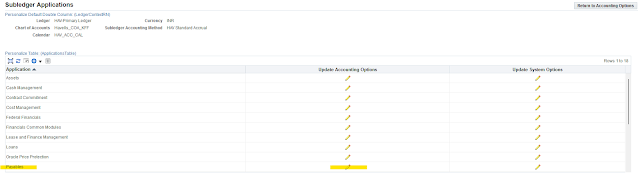
Now Validate the Application Accounting Definition and assign the same to your Custom Sub-Ledger Accounting Method and assign the Custom Sub-Ledger Accounting Method to your ledger.


Now we create AP Invoice. 

For system to understand this AP Invoice is of Prepaid Expense we have to give the invoice "Deferred Dates". By which system treats this invoice as prepaid expense invoice and recognize the expense in future months.


Enter "Default Distribution Account" as "Prepaid Expense" and enable "Deferred Dates" check box and after that enter enter Start Date and End Date in which prepaid expense amount will be distributed.


Go to Line Level DFF and enter value as "RENT" which was mapped to GL Code "E10266" and will distribute the balance from Prepaid Expense GL Code (entered at line level) to Expense Account mapped at ADR Level at Step 2.


Validate the Invoice and Submit Create Accounting to its impact.


Now we understand the work of "Accrual" & "Recognition"

Here the first two lines is generated from "Accrual" JLT as uses the default distribution account as Item Expense Account.

For "Recognition" system passes additional entries in which GL Account which was mapped against "RENT" at mapping set level is debited and default distribution account is credited.
Here same entry is passed in each month which shows the "Recognition" Event as per JLT.


Here in the above screenshot we can see that GL Date is having 3 Months i.e. April, May and June. GL Period is Open for the month of April, so entries will be posted and will show impact in Trial Balance. As for the month of May & June, when period is opened these entries will not be posted directly. We need to submit the below program "Complete Multiperiod Accounting" for those entries to be accounted as per there period in the GL Date.


After completion of this program "Journal Entry Status" will be changed from "Incomplete" to "Final".

Deriving of Segment Value from DFF for Liability Account through Mapping Set - Custom SLA


Requirement: Business requires to do "Location Wise Accounting" for which they are using the "Future" Segment. Business wants to open a DFF at AP Invoice Header Level and update the future segment of "Liability Account" as per value entered in the DFF.

Here we are going to achieve this requirement through Custom SLA in which we are going to use Mapping Set and map the Value Set of Future Segment to the Value Set used in Invoice Header DFF.

Here I am not going to show the detailed setups of Custom SLA and only the setups required for the above requirement.
To understand the step by step process for Custom SLA Setups. (Click Here)


Before starting setups for Custom SLA we need to know about "Automatic Offset Method" in Payables Option. We have three types of method against which our liability account generate the code combinations. In Custom SLA setup we will use only that "Line Type" for liability account on which Automatic Offset Method is set to.

To understand the "Automatic Offset Method" and its accounting impact on Liability Account in detail. (Click Here) 


Here we are using it as "None"


Open a DFF at AP Invoice Header Level.


Add DFF "Location"


Now create a mapping set through which we are going update the Future Segment of Liability Account.

Here in Input we will use the value set which we have assigned in the DFF and in Output we will use the segment on which the value should be update which creating Liability Account Code Combination.

In Mapping Set Values we select Value Type as Input and on the basis of that "Input Value" populate values from the value set values of DFF and "Output Value" will populate the values from the value set assigned in the COA Future Segment.


Now create a Custom Application Accounting Definition.

Click on Event Class "Invoice" and then click in "Journal Line Definition"


Here as per "Automatic Offset Method" we will choose "Liability, Basic" and disable the same create a new "Line Type" by Copying and adding the same in Line Assignments.


Click in "Account Derivation Rule" and add a new record.

Give appropriate Rule Code and Name then select your COA and select the output type "Segment" and use the "Future" Segment.

 In priorities select value type as Mapping Set and select the mapping set which we created earlier. 

In "Input Source" use the attribute which we used in AP Invoice Header Level DFF.

Save & Close


In Account Derivation Rule add new line and select the Segment for which you have created the ADR and select the rule which you have created in the previous step. 


Save & Close.

Validate the Application Accounting Definition and attach the same in Sub-Ledger Accounting Method and then attach it to the Ledger.


AP Invoice Transaction


How to Change Journal Line Description in General Ledger through Custom-SLA


Requirement: When data is imported from Sub-Ledgers to General Ledger, system generates seeded Journal Description 'Journal Import Created' due to which at Reporting Level business faces issue while there reconciliation process. Here business wants to generate "Journal Line Description" in a particular format like as shown below.

Invoice Number || Voucher Number || Supplier Number || Invoice Header Description

Here we are taking an example to Customize SLA for Payables in which Custom SLA will update "Journal Line Description" for AP Invoice and will check the same impact in General Ledger after accounting of AP Invoice.


Prerequisites before starting Custom-SLA is to update the below option in "Subledger Accounting Options" at Ledger Level. 

Find your ledger.


Click on update and then Click update for 'Subledger Accounting Options'.


Click on 'Update Accounting Options'


Update 'General Ledger Journal Entry Summarization' to any below given values.

Group by GL Date
Group by GL Period
No Summarization

Use only these values otherwise Custom SLA for Journal Line Description will not work.